

Codebase indexing is back—here’s how to set it up.
This is the practical companion to the launch post. The launch post covers why indexing matters. This guide covers the mechanics: providers, vector stores, enablement scope, tuning, file filters, and verification.
The main rule: provider configuration is not enablement. You can add API keys and model settings without indexing anything. Kilo starts indexing only after you turn it on globally or for the current project.

What you need before you start
Codebase indexing needs two pieces:
an embedding provider, which turns code chunks into vectors
a vector store, which saves those vectors and lets Kilo search them later
Kilo parses code locally with Tree-sitter, chunks it into semantic blocks like functions, classes, and methods, embeds those chunks, and stores the vectors. Once the index is ready, Kilo can use the semantic_search tool to answer conceptual questions like “where do we validate customer identity?” or “find the retry logic for failed API calls.”
This guide follows the current Kilo Code codebase indexing docs. Where the public docs do not document a config shape, this guide does not invent one.
Start in the VS Code settings UI
For most users, the settings UI is the safest first path. This assumes you already have a vector store ready - if not, be sure to follow the “Choose a vector store” section below first.
Open Kilo Code in VS Code.
Go to Kilo Code Settings → Indexing.
Turn on Global Enable or Enable for This Project.
Choose an embedding provider.
Choose a vector store: Qdrant or LanceDB.
Adjust tuning only if you need to.
Save, then watch the indexing status indicator in the prompt input panel.
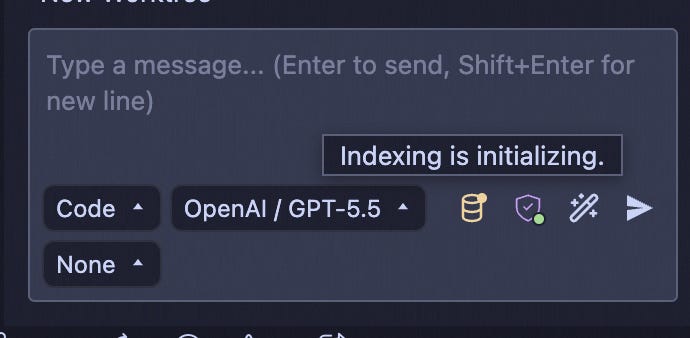
You can also click the indexing indicator at the bottom of the prompt input panel to open indexing setup.
The statuses are:
Disabled: indexing is off or not configured.
Initializing: indexing is getting started and setup.
Standby: indexing is configured but not currently processing files.
In Progress: Kilo is scanning, chunking, embedding, or storing files. The UI shows progress (e.g.
Indexed 123 / 250 files (54%)).Complete: the index is up to date and ready for semantic search.
Error: indexing failed. Check the error message, provider credentials, and vector store connection.
Do not skip this check. An API key in config does not mean the repo has been indexed.
Project-level vs. global enablement
Kilo has two enablement scopes.
Use Enabled Globally when you want Kilo to index every workspace you open, using your global indexing defaults.
Use Enable for this project when you want indexing only for the current repo. This is usually the better first test, especially for a large codebase or a hosted embedding provider.
The config shape is the same either way:
{
  “indexing”: {
    “enabled”: true
  }
}
The path determines the scope:
Global config:
~/.config/kilo/kilo.jsoncProject config:
./kilo.jsonc in the repo
Use the global file for defaults you want everywhere. Use the project file when a repo needs its own provider, vector store, file filters, or tuning.
Again: setting provider, model, or an API key does not start indexing. indexing.enabled must be true at the scope you intend.
Path 1: Kilo Gateway users
If you already use Kilo tokens, check Kilo Code Settings → Indexing first. The current public indexing docs list supported embedding providers and provider config keys, but they do not currently document a Kilo Gateway-specific indexing provider or a Gateway embeddings endpoint.
That matters because provider is not a display label. It is a config key Kilo uses to load the provider. Do not guess a key like kilo-gateway unless your installed Kilo Code build writes it for you.
If your build shows Kilo Gateway as an embedding option, use the UI and let Kilo write the provider shape. A guarded example looks like this:
{
  "indexing": {
    "enabled": true,
    // Use the provider key written by your installed Kilo Code build.
    // The current public indexing docs do not document a Kilo Gateway
    // embedding provider key, so do not hand-write one from memory.
    "provider": "<kilo-gateway-provider-from-ui>",
    "model": "<embedding-model-from-ui>",
    "vectorStore": "lancedb",
    "lancedb": {}
  }
}
If the UI does not show Kilo Gateway for embeddings, use one of the documented direct provider paths below. The Gateway docs confirm Kilo’s OpenAI-compatible Gateway for chat, FIM, model listing, and provider listing. The indexing docs are the source of truth for indexing embedding providers.
Path 2: Mistral BYOK
Use Mistral BYOK when you want to bring a Mistral API key from La Plateforme.
In the UI:
Open Kilo Code Settings → Indexing.
Enable indexing globally or for this project.
Choose mistral as the embedding provider.
Paste your Mistral API key.
Choose Qdrant or LanceDB.
Save.
The docs call out one easy mistake: Codestral-specific keys from the Mistral autocomplete setup guide are not interchangeable with regular Mistral API keys for indexing. Use an API key from La Plateforme.
Minimal Mistral BYOK with LanceDB:
{
  "indexing": {
    "enabled": true,
    "provider": "mistral",
    "model": "",
    "vectorStore": "lancedb",
    "mistral": {
      "apiKey": "<MISTRAL_API_KEY_FROM_LA_PLATEFORME>"
    },
    "lancedb": {}
  }
}
Leave model unset if you want the provider default. Set it only when you have a specific Mistral embedding model you want Kilo to use.
Path 3: Ollama + LanceDB for fully local indexing
Use Ollama + LanceDB when you do not want indexing data to leave your machine.
Ollama runs the embedding model locally. LanceDB is embedded and file-based, so there is no vector database server to run. With this setup, parsing, embedding, and vector storage all happen locally.
Install and start Ollama, then pull an embedding model. The indexing docs list mxbai-embed-large, nomic-embed-text, and all-minilm as Ollama options.
ollama pull nomic-embed-textThen configure Kilo:
{
  "indexing": {
    "enabled": true,
    "provider": "ollama",
    "model": "nomic-embed-text",
    "vectorStore": "lancedb",
    "ollama": {
      "baseUrl": "http://localhost:11434"
    },
    "lancedb": {}
  }
}
This is the simplest fully local setup: no hosted embedding API, no external vector database, and no external calls for indexing. If status moves to Error, confirm that Ollama is running, the model was pulled successfully, and baseUrl matches your local Ollama server.
Path 4: OpenAI
Use OpenAI when you want a hosted embedding model with a small config surface.
The docs list text-embedding-3-small as the default, text-embedding-3-large for higher accuracy, and text-embedding-ada-002 as legacy.
{
  "indexing": {
    "enabled": true,
    "provider": "ollama",
    "model": "nomic-embed-text",
    "vectorStore": "lancedb",
    "ollama": {
      "baseUrl": "http://localhost:11434"
    },
    "lancedb": {}
  }
}
If you see rate-limit or batch errors during indexing, lower embeddingBatchSize before changing providers.
Other direct providers
Kilo also supports these direct embedding provider shapes. These examples are intentionally brief: use them when you already know which provider and embedding model you want.
OpenAI-compatible endpoint:
{
  "indexing": {
    "provider": "openai-compatible",
    "model": "<embedding-model>",
    "openai-compatible": {
      "baseUrl": "https://...",
      "apiKey": "..."
    }
  }
}
Gemini:
{
  "indexing": {
    "provider": "openai-compatible",
    "model": "<embedding-model>",
    "openai-compatible": {
      "baseUrl": "https://...",
      "apiKey": "..."
    }
  }
}
Vercel AI Gateway:
{
  "indexing": {
    "provider": "vercel-ai-gateway",
    "model": "<embedding-model>",
    "vercel-ai-gateway": {
      "apiKey": "..."
    }
  }
}
AWS Bedrock:
{
  "indexing": {
    "provider": "bedrock",
    "model": "<embedding-model>",
    "bedrock": {
      "region": "us-east-1",
      "profile": "default"
    }
  }
}
OpenRouter:
{
  "indexing": {
    "provider": "openrouter",
    "model": "<embedding-model>",
    "openrouter": {
      "apiKey": "...",
      "specificProvider": "..."
    }
  }
}
Voyage:
{
  "indexing": {
    "provider": "voyage",
    "model": "voyage-code-3",
    "voyage": {
      "apiKey": "..."
    }
  }
}
For any of these, add enabled, vectorStore, and vector store settings when you want indexing to start:
{
  "indexing": {
    "enabled": true,
    "provider": "voyage",
    "model": "voyage-code-3",
    "vectorStore": "lancedb",
    "voyage": {
      "apiKey": "..."
    },
    "lancedb": {}
  }
}
Choose a vector store: Qdrant or LanceDB
The vector store is where Kilo saves embeddings after it chunks your code.
Use LanceDB when you want the least moving parts. It is embedded and file-based. You do not need Docker, a server process, or a network connection. If you omit a directory, Kilo stores LanceDB data under the Kilo data directory by default.
{
  "indexing": {
    "vectorStore": "lancedb",
    "lancedb": {}
  }
}
Use Qdrant when you want an external vector database server. The docs list Qdrant as the default vector store and recommend it for larger codebases and team deployments. For production, use authentication.
Start Qdrant locally with Docker:
docker run -p 6333:6333 qdrant/qdrantThen configure Kilo:
{
  "indexing": {
    "vectorStore": "qdrant",
    "qdrant": {
      "url": "http://localhost:6333",
      "apiKey": ""
    }
  }
}
If indexing fails with Qdrant selected, check that the server is running, the URL is reachable from Kilo, and the API key matches your Qdrant deployment.
Configure indexing from the CLI
The Kilo CLI includes an interactive indexing command when the indexing plugin is installed.
Open a Kilo TUI session in your repo and run:
/indexingAliases also work:
/index

/embedding
The dialog can toggle indexing, choose an embedding provider, set provider credentials, choose a model, set vector dimensions, choose Qdrant or LanceDB, configure vector store settings, and adjust tuning parameters. Changes are written to kilo.jsonc and take effect immediately.
A complete CLI-style config can look like this:
{
  "indexing": {
    "enabled": true,
    "provider": "voyage",
    "model": "voyage-code-3",
    "dimension": 1024,
    "vectorStore": "qdrant",
    "voyage": {
      "apiKey": "pa-..."
    },
    "qdrant": {
      "url": "http://localhost:6333",
      "apiKey": ""
    },
    "searchMinScore": 0.4,
    "searchMaxResults": 50,
    "embeddingBatchSize": 60,
    "scannerMaxBatchRetries": 3
  }
}
When indexing is enabled, the CLI shows an IDX badge at the bottom of the TUI: IDX In Progress 40% 120/300, IDX Complete, IDX Standby, or IDX Error <message>.
Tune the defaults only when you have a reason
The defaults are a good starting point. Change them when you are solving a specific failure mode.
searchMinScore controls the minimum similarity score for returned results. The default is 0.4. Raise it if searches return too much loosely related code. Lower it if searches miss relevant results.
searchMaxResults controls how many results semantic search can return. The default is 50. Lower it if the agent receives too much context. Raise it if you are working in a large repo and relevant matches are being cut off.
embeddingBatchSize controls how many code segments Kilo sends to the embedding provider per batch. The default is 60. Lower it if a hosted provider rate-limits you or if local embedding runs out of memory.
scannerMaxBatchRetries controls how many times Kilo retries a failed embedding batch. The default is 3. Raise it only if failures are transient and retrying is actually helping.
Example conservative hosted-provider tuning:
{
  "indexing": {
    "searchMinScore": 0.45,
    "searchMaxResults": 30,
    "embeddingBatchSize": 25,
    "scannerMaxBatchRetries": 3
  }
}
Control what gets indexed
Kilo does not blindly embed every file in your repo.
By default, it excludes:
binary files and images
files larger than 1MB
.gitdirectoriesdependency folders such as
node_modulesandvendorfiles ignored by
.gitignorefiles ignored by
.kilocodeignore
Use .kilocodeignore when you want indexing-specific exclusions without changing Git ignore rules. Common examples include generated clients, build output, large snapshots, vendored SDKs, or private test fixtures that should not be sent to a hosted embedding provider.
Example .kilocodeignore:
# Generated code
generated/
**/*.generated.ts

# Large fixtures
fixtures/snapshots/

# Local secrets and scratch files
.env*
.local-notes/
If you are using a hosted provider, remember the privacy model: parsing happens locally, and Kilo sends small code snippets for embedding, not whole files. If nothing should leave the machine, use Ollama + LanceDB.
Verify semantic search works
Wait for status to reach Complete. Then ask Kilo a conceptual question that would be annoying to grep for:
Where do we validate user permissions before deleting a resource?A healthy semantic search result should include relevant snippets, file paths, line numbers, similarity scores, and enough surrounding context for the agent to decide what to read next.
If status shows Error:
Read the error message in the UI or
IDX Errorbadge.Confirm
indexing.enabledis true at the scope you intended.Check provider credentials.
If using Qdrant, confirm the server is running and reachable.
If using Ollama, confirm the embedding model is pulled and Ollama is listening on the configured
baseUrl.Lower
embeddingBatchSizeif the provider is rate-limiting or local embedding is failing under load.Check
.kilocodeignoreand.gitignoreif files you expected to see are missing.
For local embedding failures involving batch or micro-batch settings, align the embedding model batch size and micro-batch size, restart the local server, and try again.
The setup checklist
A working indexing setup has all of these pieces:
indexing.enabledis true globally or for the current project.The embedding provider is documented and has valid credentials or a reachable local endpoint.
The model is an embedding model, not a chat-only model.
The vector store is configured and reachable.
File filters exclude the files you do not want indexed.
Status reaches
Complete.Kilo can answer a conceptual code question using semantic search.
Start with the simplest path that matches your constraints: Mistral BYOK or OpenAI for hosted embeddings, Ollama + LanceDB for fully local indexing, LanceDB when you do not want a database server, and Qdrant when you need an external vector store.
Once status is Complete, indexing is no longer a setup task. It becomes part of the agent workflow: ask Kilo for the concept, inspect the files it finds, and then make the change with the right context loaded.
Nice but stop spamming the journalctl log with that stuff and fix the 40 open issues.
You tell us you have 20 agents per developer simultaneously, then do it