

TL;DR
TL;DR
Every Kilo surface uses the same global configuration. The CLI, the VS Code extension, and JetBrains all load providers and credentials from one place in your home directory, so a provider added anywhere shows up everywhere.
To run a second isolated setup, relocate both
XDG_CONFIG_HOMEandXDG_DATA_HOME. Moving only the config still shares your keys, because credentials live in the data directory.Separate VS Code installs don’t isolate providers, not even Insiders with its own
--user-data-dir.For per-repo behavior rather than separate accounts, use project config in
.kilo/kilo.jsonc.Switching accounts inside Kilo isn’t a built-in feature. The last section covers why.
Five ways to get separation, in rough order of how often they’re the right answer.
How Kilo stores providers and keys
Two directories matter, and they’re separate on purpose.
Config lives at
~/.config/kilo/. Thekilo.jsoncfile holds providers, models, and permissions. It honorsXDG_CONFIG_HOME, and there’s a direct override,KILO_CONFIG_DIR.Credentials live in
auth.jsonunder the data directory,~/.local/share/kilo/, written with0600permissions. It honorsXDG_DATA_HOME.
The split is the part people miss.
KILO_CONFIG_DIRmoves the config but not the credentials. Override only the config directory and your second instance still shares your mainauth.json, so real isolation has to move both.To check where any instance is reading from:
kilo debug paths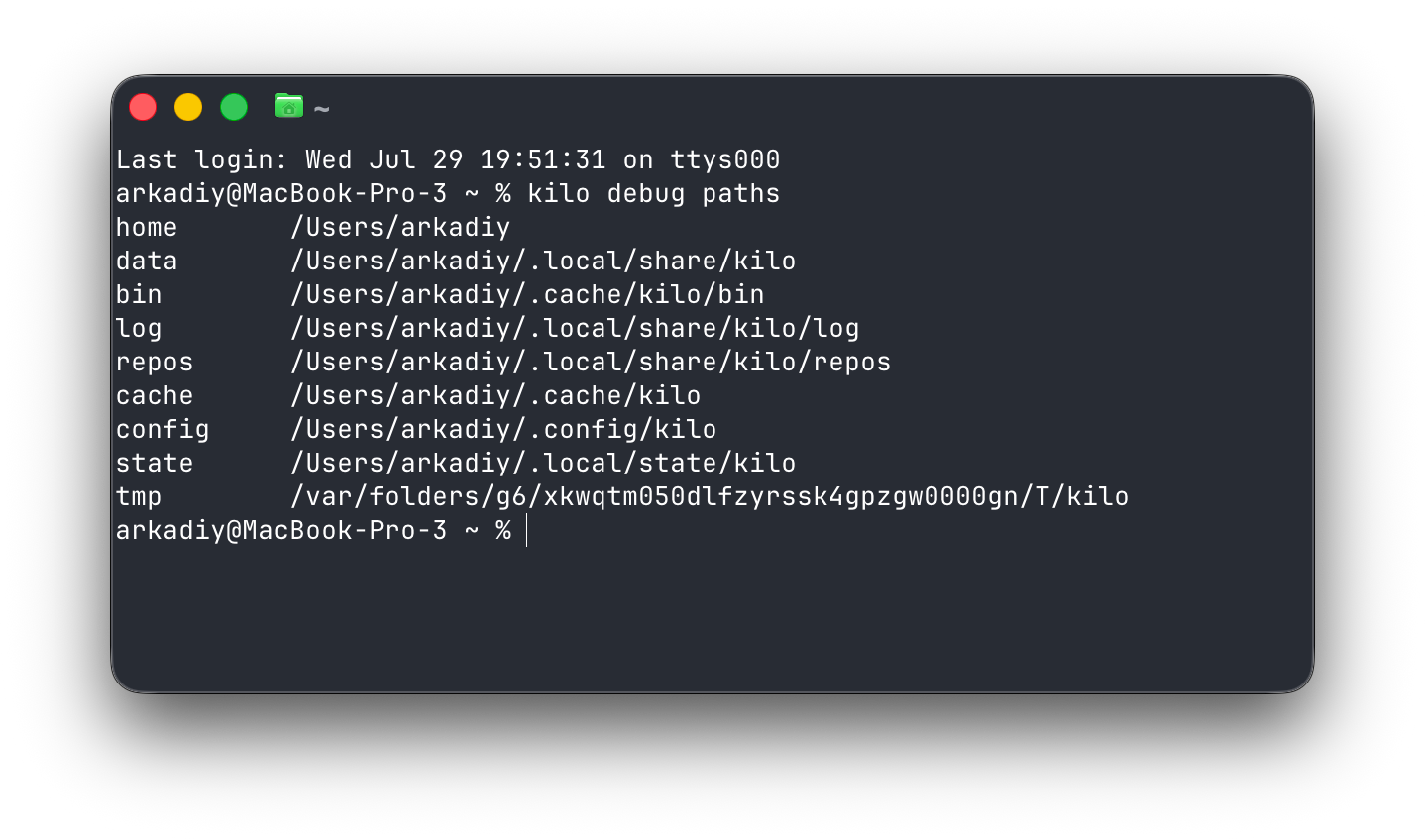
Option 1: Relocate the config and data directories
Point Kilo at a separate config and data home:
XDG_CONFIG_HOME=~/kilo-alt/config \
XDG_DATA_HOME=~/kilo-alt/data \
XDG_CACHE_HOME=~/kilo-alt/cache \
kilo
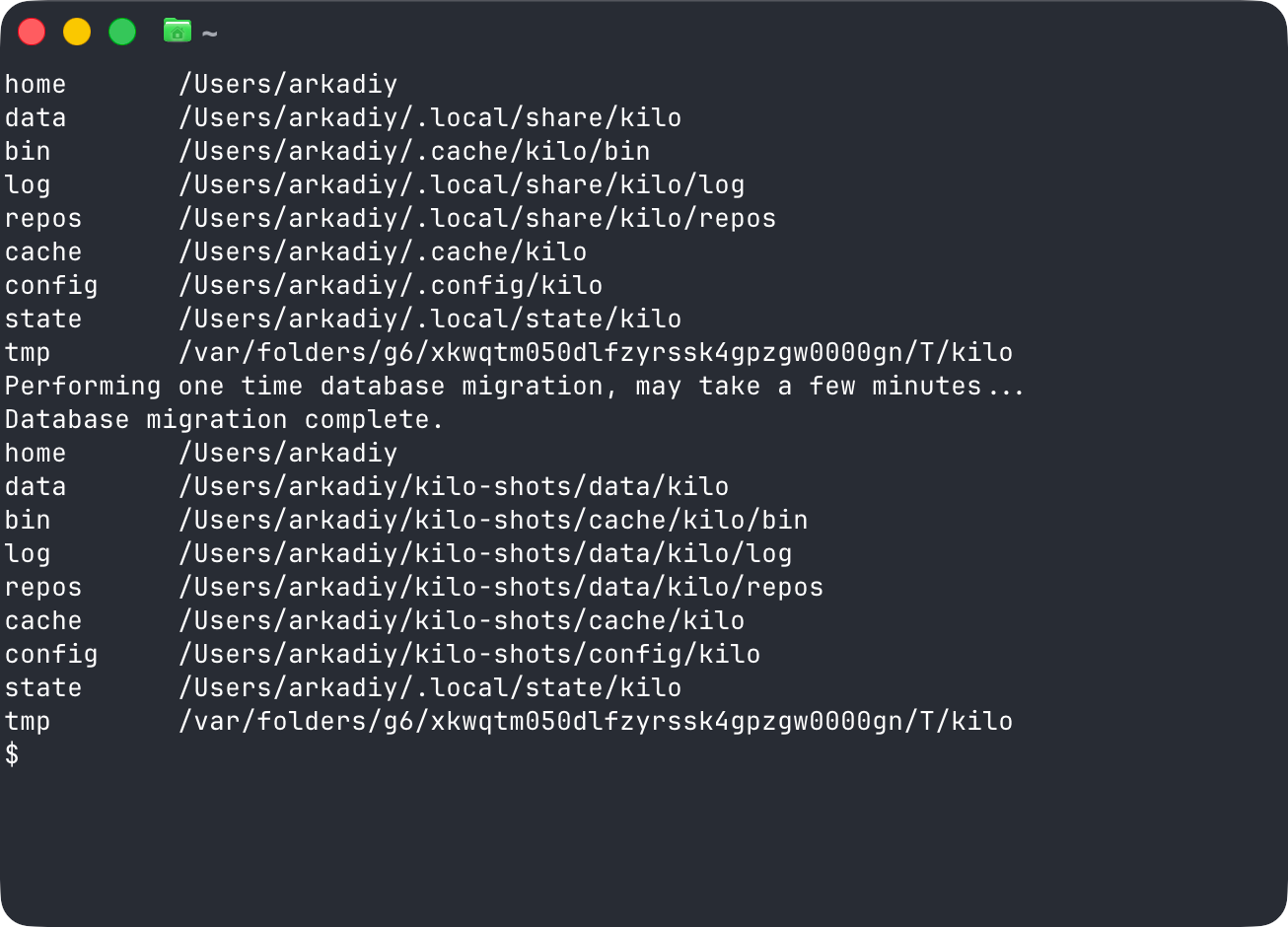
The first run there starts empty, with no providers and no credentials. Run /connect inside it to set things up, and everything writes under ~/kilo-alt/ instead of your real config.
Wrap it in an alias so it’s one word:
# ~/.zshrc
alias kilo-alt='XDG_CONFIG_HOME=~/kilo-alt/config XDG_DATA_HOME=~/kilo-alt/data XDG_CACHE_HOME=~/kilo-alt/cache kilo'
Now kilo is your normal setup and kilo-alt is the isolated one. Open two terminals and run both at once, with separate configs, credentials, and sessions.
To start from a copy of your current setup instead of a blank slate:
mkdir -p ~/kilo-alt/config ~/kilo-alt/data
cp -r ~/.config/kilo ~/kilo-alt/config/kilo
cp -r ~/.local/share/kilo ~/kilo-alt/data/kilo
Copying the data directory copies auth.json, which holds live credentials. Treat that directory like the secret it contains, and don’t commit it.
Option 2: Define a second provider in one config
Use this when you want both providers available in the same session rather than two separate setups.
If the second provider is OpenAI-compatible or points at a different base URL, add it to kilo.jsonc under a distinct provider id rather than reusing the built-in one. Different id, different key, different model list, and nothing gets removed. Reference keys from the environment instead of writing them into the file:
{
  "provider": {
    "openai": {
      "options": { "apiKey": "{env:OPENAI_API_KEY}" }
    },
    "openai-work": {
      "options": {
        "apiKey": "{env:OPENAI_WORK_KEY}",
        "baseURL": "https://your-endpoint/v1"
      }
    }
  }
}
Restart the CLI after editing, then run kilo config check to validate.
This won’t hold two keys for the same built-in provider through the normal auth flow, since there’s one auth.json. For that, use Option 1.
Option 3: Isolate a VS Code window
Separate editor installs don’t isolate providers. Run the Kilo extension in stable VS Code and in VS Code Insiders, even with separate --user-data-dir and --extensions-dir, and they still share provider config and API keys. Create a provider in one and it appears in the other. That’s by design: the extension runs an embedded runtime that stores providers in ~/.config/kilo/kilo.jsonc and credentials in ~/.local/share/kilo/auth.json, both in your home directory and outside anything VS Code’s own flags control. Every install and window reads those two files, which is what keeps the sidebar, Agent Manager, and CLI in sync.
There’s also no per-window provider profile in the extension UI yet. You set providers up through the CLI or by editing the config, and the extension reads those files. Isolation has to come from the launch environment.
Launch the editor with relocated directories
Point the embedded runtime at its own config and data roots by launching the editor from an environment where the variables are set. The extension forwards the shell environment into the backend it spawns:
XDG_CONFIG_HOME=~/kilo-alt/config \
XDG_DATA_HOME=~/kilo-alt/data \
XDG_CACHE_HOME=~/kilo-alt/cache \
code --user-data-dir ~/kilo-alt/vscode-data --extensions-dir ~/kilo-alt/vscode-ext
The XDG variables isolate Kilo’s providers and keys. The two VS Code flags isolate the editor itself, and you can drop them if you’re happy sharing extensions and editor state.
The editor has to inherit those variables, which is the step people miss. Launch from a terminal where they’re exported, or bake them into a wrapper script or launcher. Start VS Code from the Dock or Spotlight and it won’t see the shell exports, so both instances quietly fall back to the shared home config. Run kilo debug paths in the isolated window’s integrated terminal to confirm before you trust it with a separate key.
Don’t export KILO_SERVER_USERNAME. The extension authenticates to its own backend as user kilo. Set a different server username in the launching environment and the spawned backend expects that name while the extension keeps sending kilo, which can leave the extension stuck on “connecting to server.” Clear the server-auth variables when launching:
env -u KILO_SERVER_USERNAME -u KILO_SERVER_PASSWORD \
  XDG_CONFIG_HOME=~/kilo-alt/config XDG_DATA_HOME=~/kilo-alt/data \
  code /path/to/project
Running the dev build (not recommended)
If you have the source checkout, bun run extension builds the extension from packages/kilo-vscode and launches it in VS Code’s Extension Development Host, the same as pressing F5 on the repo. That gives you a second editor instance running a build you control, and because you launch it from a terminal you can set the variables above on that same command.
It doesn’t isolate config on its own. The Extension Development Host changes which extension build runs, not where the runtime reads config from. Two things keep this a contributor path. It needs the repo and the Bun toolchain, and the config schema is strict, so an unrecognized top-level key in kilo.jsonc fails the launch with a fatal “Configuration is invalid” error instead of being ignored. That’s easy to hit when switching feature branches.
Option 4: Scope config to a project
Before setting up a second instance, check whether per-project config gets you there. Kilo reads config from several locations and deep-merges them, lowest precedence to highest:
Remote well-known config
Global, at
~/.config/kilo/kilo.jsoncThe
KILO_CONFIGenvironment variableProject, at
./kilo.jsonc.kilo/kilo.jsoncKILO_CONFIG_CONTENTManaged config
Later wins, so a project file overrides your global setup for that directory only. Objects merge key by key, which means adding one provider in a project file doesn’t erase the ones defined globally. Scalar values get replaced, so setting model in a project file wins outright there.
Note the last entry: managed config outranks project config. If your organization ships managed settings, a project file can’t override them.
A project file looks like this:
// .kilo/kilo.jsonc
{
  "$schema": "https://app.kilo.ai/config.json",
  "model": "anthropic/claude-sonnet-4-6",
  "provider": {
    "openai-work": {
      "options": {
        "apiKey": "{env:OPENAI_WORK_KEY}",
        "baseURL": "https://your-endpoint/v1"
      }
    }
  },
  "permission": { "bash": "ask", "edit": "allow" },
  "instructions": [".kilo/rules/*.md"]
}
Keep the $schema line. It turns on autocomplete for every valid config key in VS Code.
Pick one file location and stick to it. Both ./kilo.jsonc and .kilo/kilo.jsonc are valid, and .kilo/ wins if both exist. Keep both and the wrong file wins silently while you wonder why an edit did nothing.
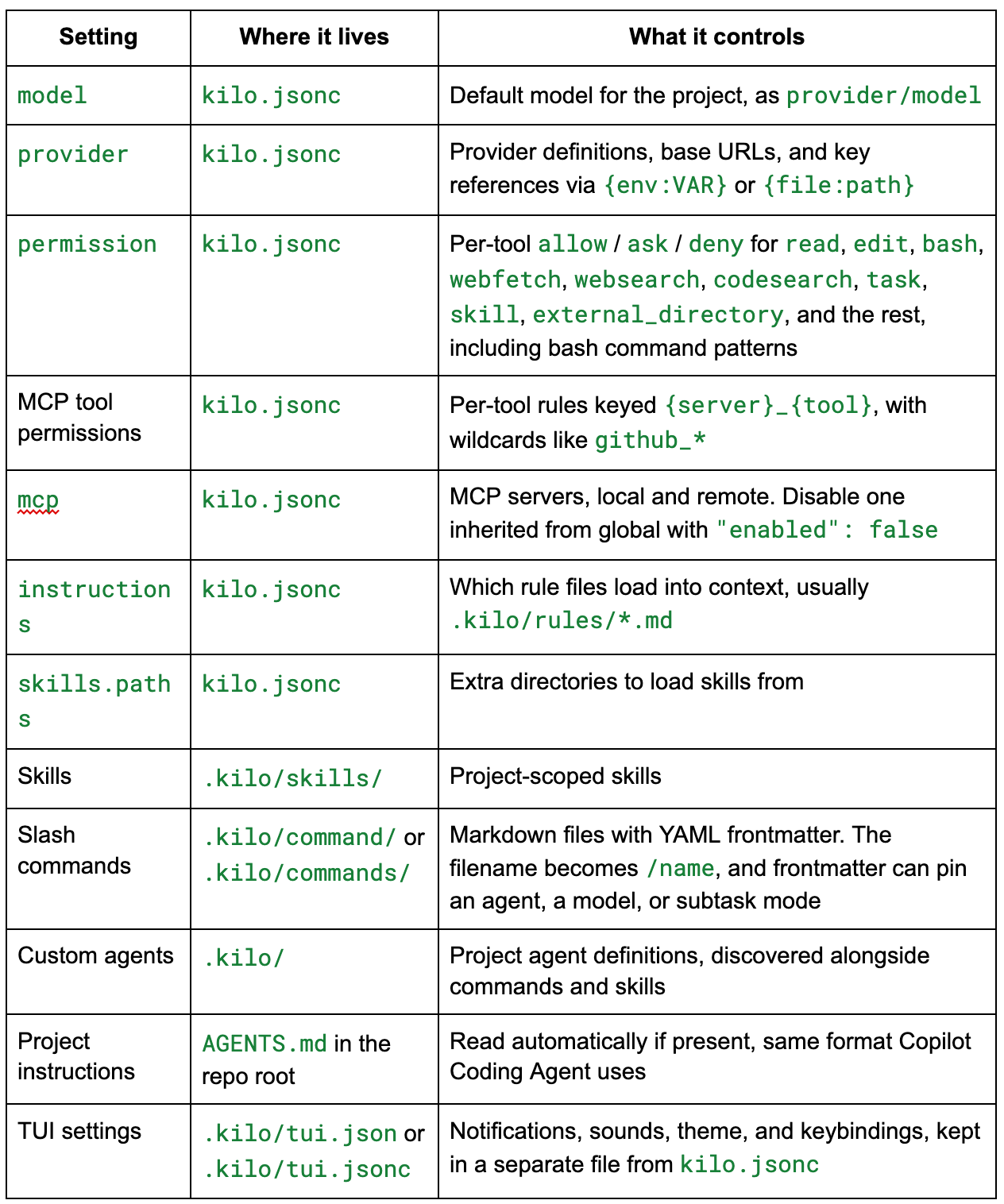
What you can override per project
Decide what to commit
A committed .kilo/kilo.jsonc gives everyone on the repo the same agent behavior, with the same rules, permissions, and model default. That’s worth doing deliberately rather than by accident.
Reference keys from the environment with {env:VAR} rather than writing them into the file, and the config is safe to commit. The provider shape lives in the repo and the secret stays in your shell. For personal overrides on top of a shared file, keep the committed config minimal and gitignore a local one.
What project config can’t do
Credentials you set up through /connect still go to the global auth.json. Project config can define a provider and point at an environment variable for its key, but it can’t hold a separate stored credential. Project config separates behavior, not accounts.
Skills are the most tempting thing to scope per project, and they have a bug worth knowing about. The docs say a project skill in .kilo/skills/ takes precedence over a same-named global one in ~/.kilo/skills/, but there’s an open bug where the load order is reversed and the global version wins. Until that’s fixed, give project skills distinct names rather than relying on shadowing a global skill, and check which one actually loaded.
Option 5: Run as a different OS user
Thanks to our user, Hendrix, for sharing this on Discord.
Running Kilo as a different operating system user isolates it completely. A different user means a different home directory, so ~/.config/kilo and ~/.local/share/kilo resolve to different paths. On Windows that’s “run as different user”; on macOS and Linux it’s a second account.
This is also why VS Code Insiders doesn’t isolate anything. Insiders changes VS Code’s storage but not your home directory, and the home directory is where Kilo keeps things.
The cost is a second desktop session. Two editors, two sets of language servers, two extension hosts, all on the same RAM. It works, and it’s the heaviest option here.
Which option to use
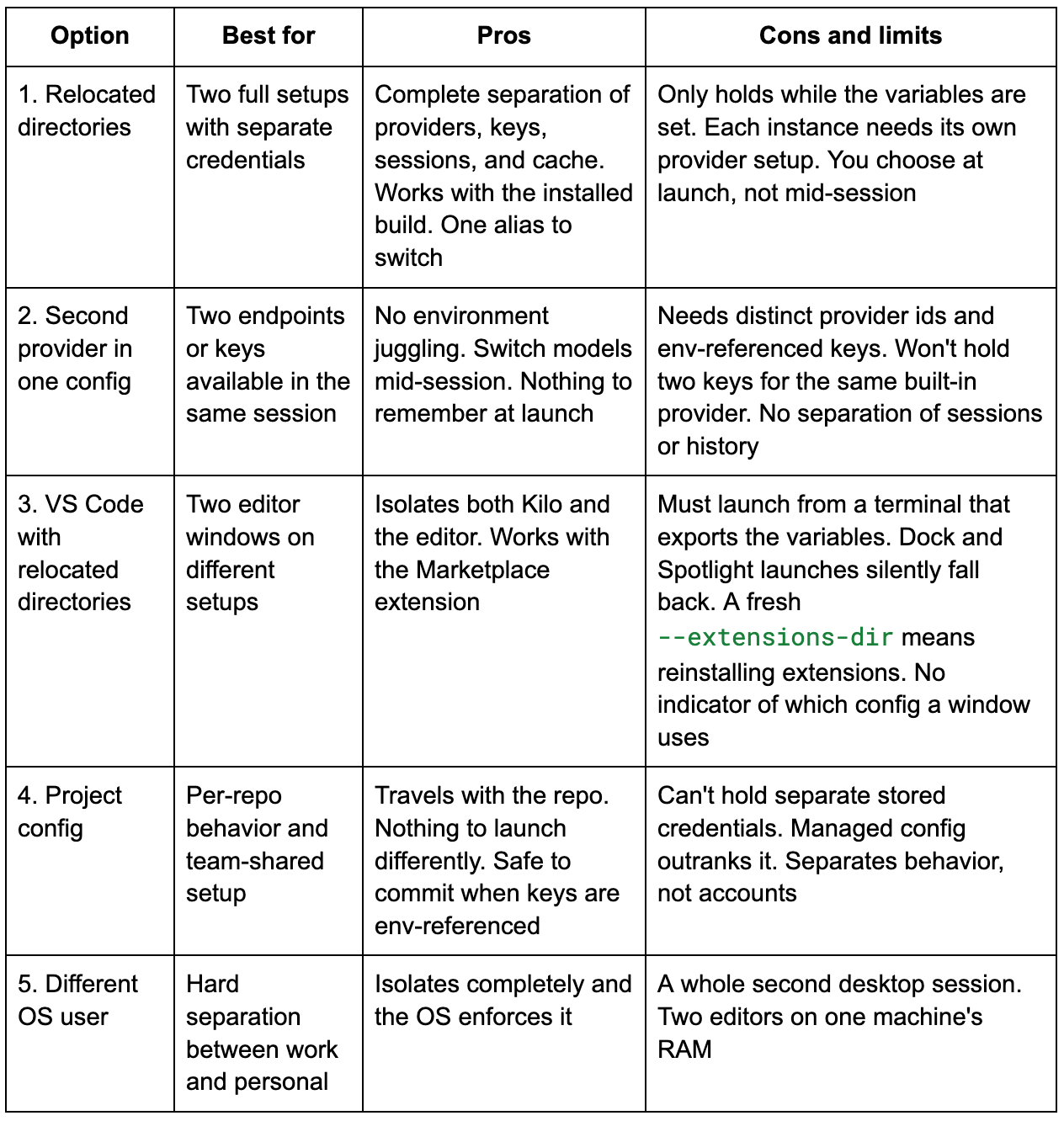
Verify with kilo debug paths before trusting an isolated setup with a separate key, because every one of these fails silently rather than loudly. And none of them switch accounts inside a running session; they all pick a setup at launch or by directory.
Why account switching isn’t built in yet
We know this one comes up, and it’s a fair ask. A work subscription during the day, personal keys in the evening, a different account per client. None of that should mean rebuilding your setup.
That one switcher wouldn’t serve everyone. If you’re moving between work and hobby projects, you want switching to be quick and invisible. If you’re on a laptop your employer manages, their IT team wants the opposite: approved accounts only, with no easy way around them. Freelancers need something else again, with accounts tied to projects and billing kept apart. Build it for any one of those and it gets worse for the others.
Two things cover the ground today. Teams and organizations handle multiple accounts where governance matters, and the config isolation in this guide handles personal setups.
Kilo is open source, and this is the kind of feature that can be contributed. If you want it, open an issue describing how you actually work.
Thanks to Hendrix, who asked what the options were for running separate instances on our Discord server. And for sharing his experience of using some of those methods.