

Did you know: NVIDIA has a generous free tier that allows you to use models like Kimi K2.5 at no cost.
In this tutorial, we’ll walk through how to use NVIDIA’s Build platform + Kilo Code to get free access to Kimi K2.5.
What you’ll need
Install the Kilo Code extension
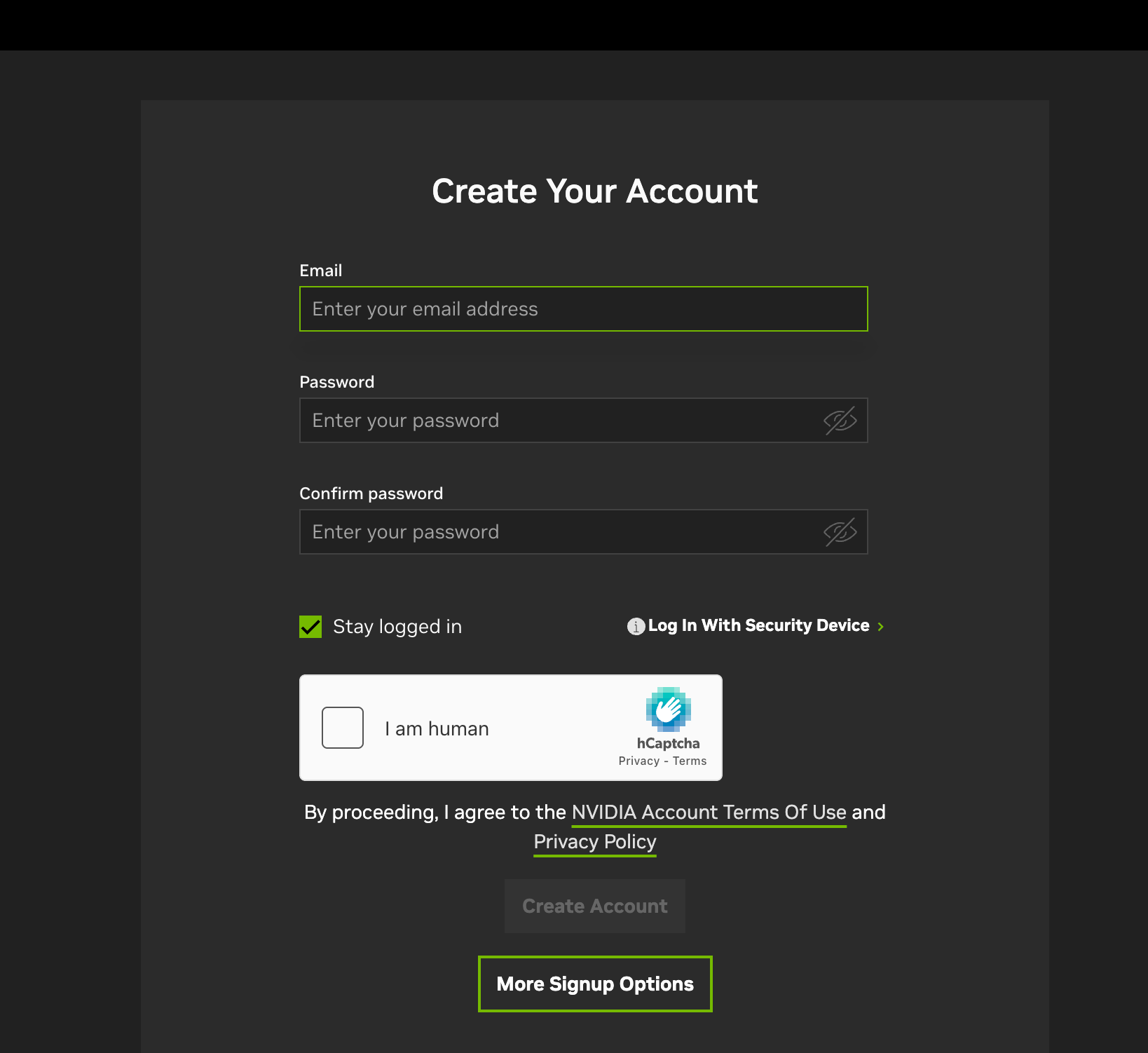
Sign up for an NVIDIA Build account.
If you don’t see a “Sign Up” screen, click “Sign In,” enter your email address, and the platform will automatically redirect you to a “Create Your Account” page..
After signing up, you’ll need to verify your phone number before you can generate API keys. This only takes about a minute.
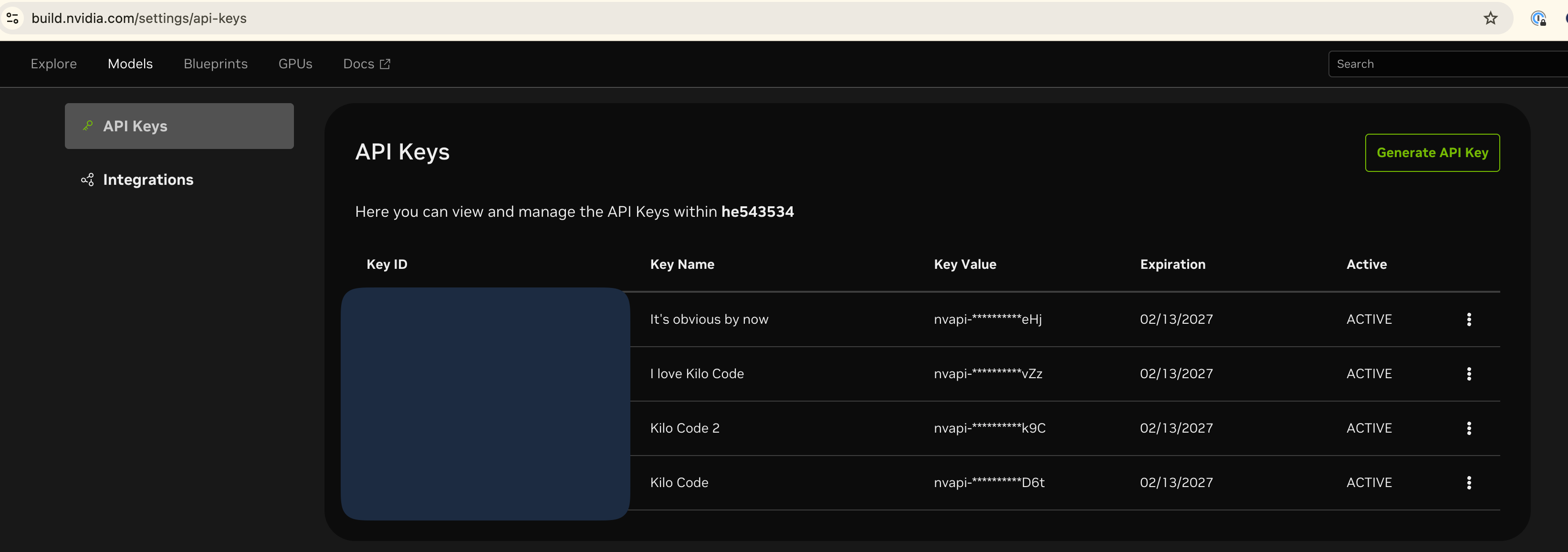
Go to the API keys page and generate an API key. You’ll use this key inside Kilo Code.
How to configure Kilo Code
Once you’ve completed the four steps above, go back to the Kilo Code extension.
Open “Settings”. For this tutorial, we’ll create a new profile
Once you create a new profile, under “API Provider,” select “OpenAI Compatible.”
In the Base URL field, enter: https://integrate.api.nvidia.com/v1
Paste the API key you just generated into the appropriate field.
Select your model. To use Kimi K2.5, under “Model”, select “moonshotai/kimi-k2-instruct
Click “Save”
To activate this profile, click “Make Active Profile.”
Here’s a short video tutorial to show you how to do all 7 steps above:
You can now verify everything is working by going to the Kilo Code prompt box and asking a simple question:
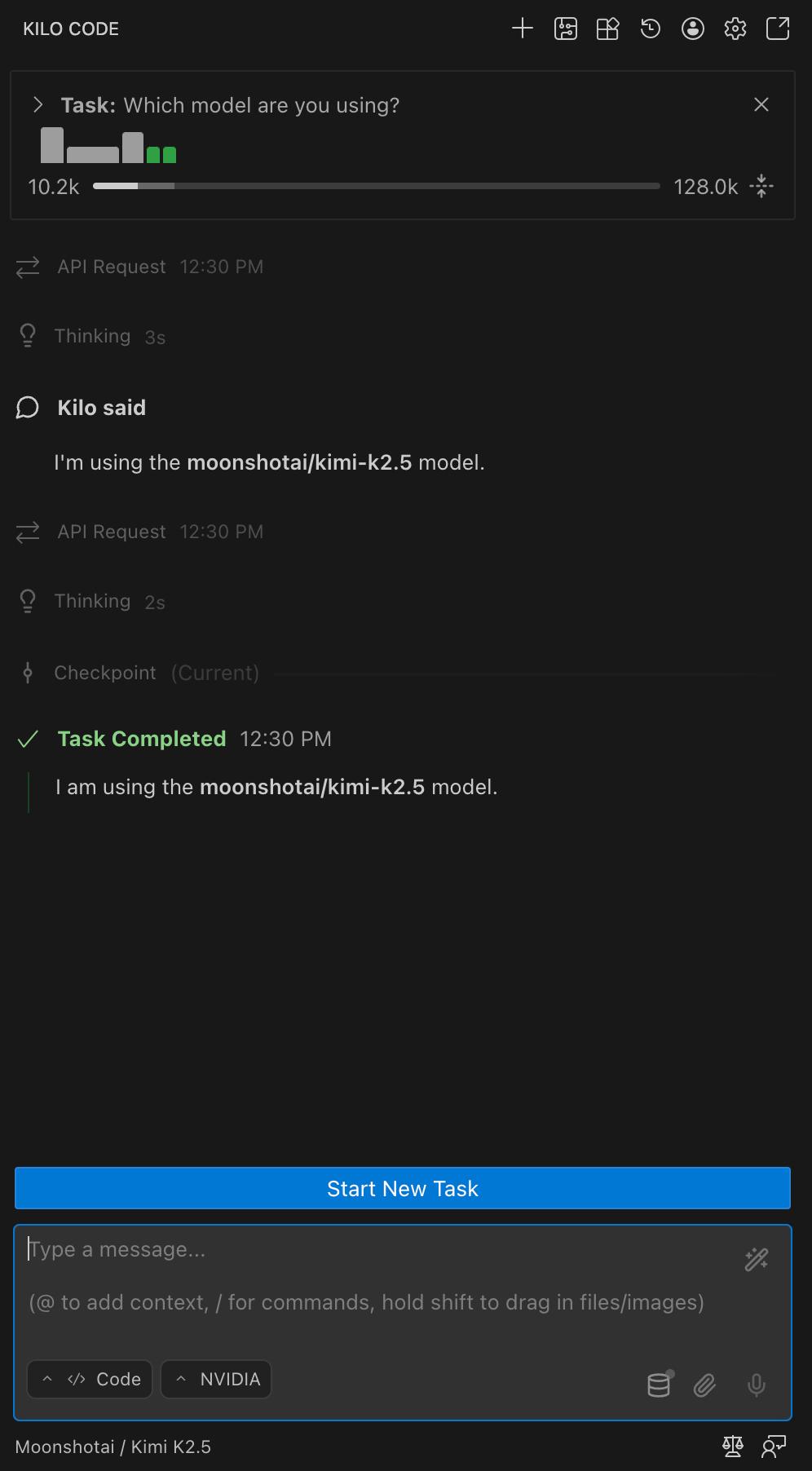
Voilà! Enjoy using Kimi K2.5 + other models completely free.
How to find the ID of the model you plan to use
NVIDIA has many models you can use for free. To use a particular model in Kilo Code, you need to find its model ID first, and then paste it into Kilo Code. Here's how to do that:
Go to NVIDIA’s Models page and pick a model
Click on “View Code”
Copy the model ID
Paste it into Kilo Code’s “model” box
Here’s a video showing you how to do that with an example:
Enjoy your free access!
Today it is not working. Did the method change?
> To use Kimi K2.5, under “Model”, select “moonshotai/kimi-k2-instruct
This is a typo right? Should be
> To use Kimi K2.5, under “Model”, select “moonshotai/kimi-k2.5”